Documents
Streamline Your Staff Management with Documents
Workstaff's Documents feature simplifies the way you collect, organize, and manage essential paperwork for your staff. Here’s why it’s a game-changer:
- Effortless Compliance & Organization: Request and track required documents with ease, ensuring your team stays compliant and up-to-date.
- Clear Notifications: When a document is requested or nearing its expiration date, staff will receive a notification.
- Approval Workflow: Seamlessly review submissions—approve, reject, or request a new version—all from one centralized location.
Activate the Documents add-on today to keep your team organized and your operations running smoothly.
Take a look at our Feature Matrix to see if this feature is included in your plan. Reach out to our Customer Success team if you have questions.
Getting Started in 3 Easy Steps
1. Creating A Document Type
In the Settings menu, click Documents, then create a new document type by clicking + Add type. Enter a name and click Save.
Once created, the document type will be available for selecting when uploading documents to staff profiles.
2. Requesting Documents To Staff
On a staff profile, navigate to the Documents tab. You can Request a document or directly Upload it.
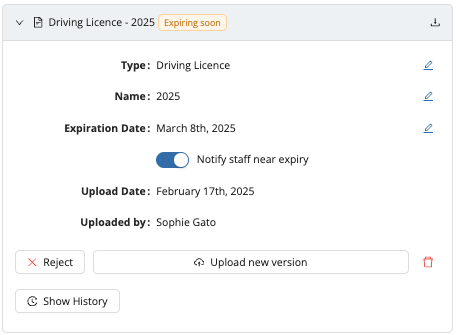
When a document is requested, staff will be prompted to upload the document. It will appear in their To-Do list under the Today tab. Once the document is submitted by the staff, it will appear on the staff profile as Pending Approval, and you'll be able to:
- Approve the document.
- Reject the document.
- Upload a new version of this document.
- Add an expiration date and choose whether to notify staff as the expiry date approaches.
Staff will receive notifications when a document is requested and when it’s nearing expiration (up to 30 days before expiration), prompting them to upload an updated version.
3. Managing Documents
Go to the Documents tab to manage staff documents. Here, you’ll find an overview of:
- To Review: Documents uploaded by staff.
- Expired: Documents past their expiration date.
- Expiring soon: Documents set to expire within the next 30 days.
- Waiting for document: Documents requested from staff but not yet uploaded.