Nethris/Employeur D Export
Employeur D is based on Nethris accounting software, therefore they share import formats and functionalities. For the rest of this article we will refer to Nethris but everything is applicable to Employeur D as well.
Simplify Your Accounting Workflow
Workstaff’s Nethris Export helps you move from payrolls to accounting exports in minutes. Here’s what it provides:
- Reliable exports: Generate Nethris payroll files directly from your Workstaff payrolls.
- Map data in Nethris: Use rules to keep staff earnings aligned with your Nethris setup.
- Less manual work: Reuse your existing staff and payroll data to prepare import-ready files.
Nethris Export lets you export data from the Payroll view as Excel file (.xlsx) and import it into Nethris.
1. Configure Nethris addon
Basic configuration
In the add-on configuration, you must indicate your Nethris company number. Then check the Fill transaction date checkbox if you want your export to use the last day of the pay period as the transaction date.
Rules
Workstaff uses rules to map payroll data to your Nethris setup. There are 3 rule categories:
- Service
- Division
- Earning code
Each category is managed the same way:
- You can set a default value
- You can add one or more rules, each composed of one or more criterion
- You can reorder rules
A rule can target one or more Workstaff fields using criterion. Configure the rule based on your needs and indicate the Nethris code that should be applied.
For Earning code rules, you must also indicate if you expect a result quantified as an Amount or a Quantity.
Rules are applied for each work item done by a staff. A worked shift, an overtime, a premium applied, are examples of work items.
Example:
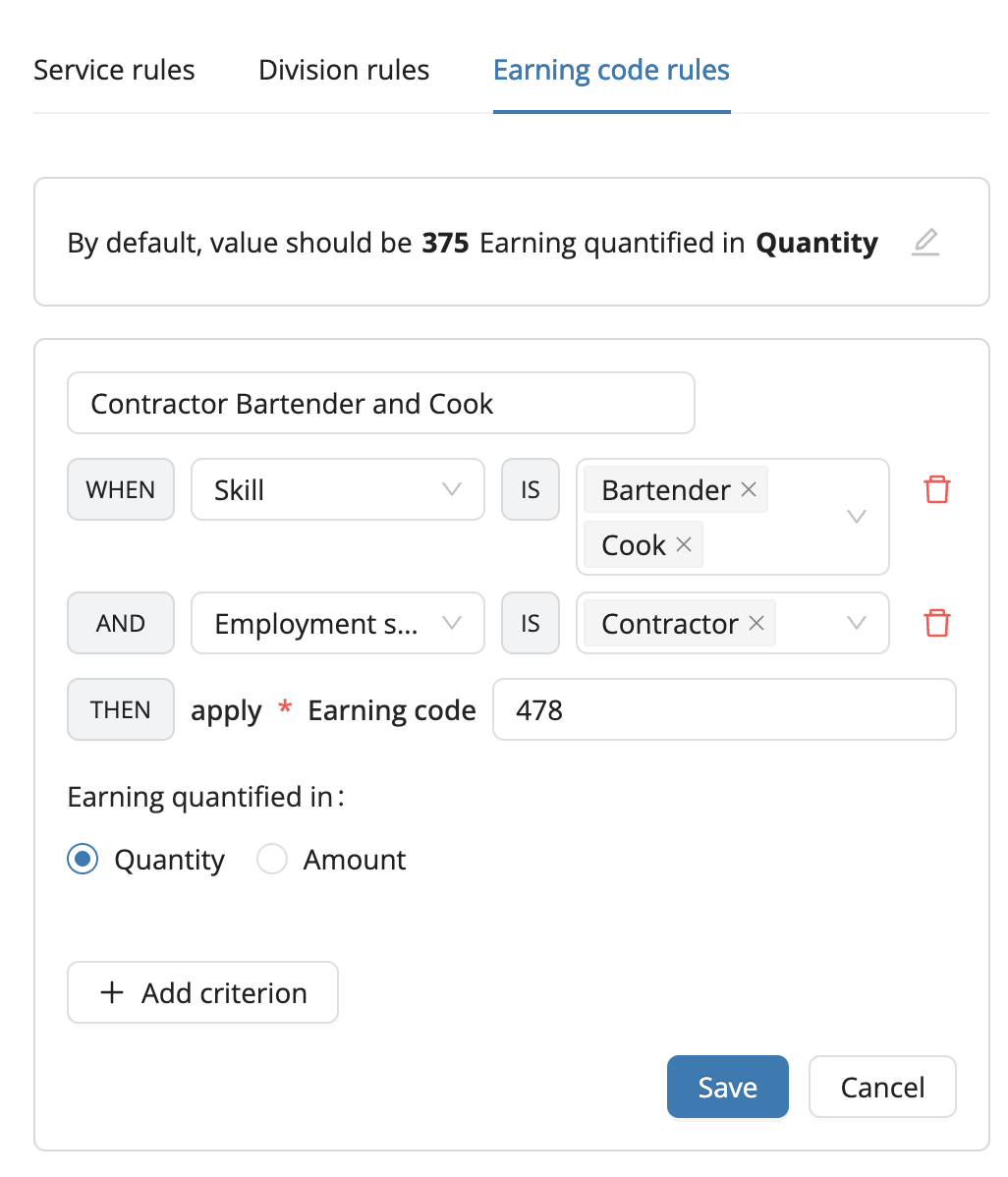
In this example, we created an earning code rule that will be applied if:
- The staff is a Contractor
- The work item is for a shift done as either a Bartender or a Cook
The result will apply Nethris Earning Code 478 with a quantity.
If you want to apply a rule on overtime, create a Earning code rule, select Earning code as criterion and select one or more of your overtime codes.
Rule ordering
Rules are applied in the order they are listed, top to bottom. You can reorder created rules by dragging and dropping them.
Example:
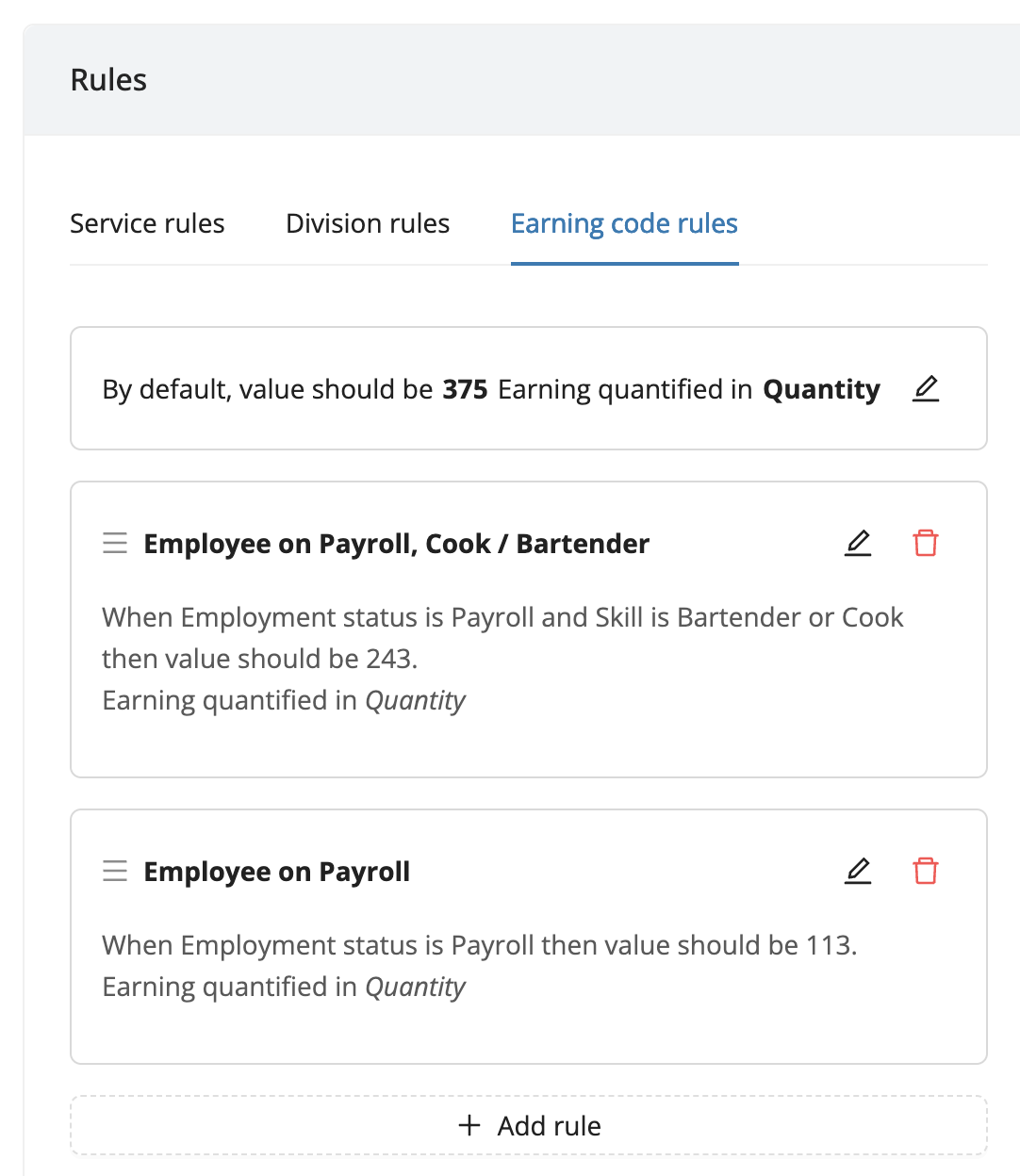
In this example, if the staff is on Payroll and the work item is for a shift done for the positions Bartender or Cook, the code applied will be 243. If this rule is not applied, then we will check the next one: if the staff is on Payroll, without any consideration for the skill, then the code applied will be 113. If no rules are applied, the default code 375 will be applied.
The order is important, if we invert the order of the rules here, a staff on payroll doing a shift as a Bartender will be a applied code 113 instead of 243 since the rule "Employee on Payroll" will be applied before the rule "Employee on Payroll, Cook / Bartender"
2. Download Payroll data
From the Payroll view, use the Nethris / Employeur D export actions to download the data in Excel format.

The file provided by Workstaff is import-ready. It must be uploaded as-is in Nethris.
3. Import data into Nethris
In Nethris, navigate to your payroll import section then:
- Select the Workstaff file
- Select the
Excelformat, be sure to not select theExcel (column)format - Import your data
If you see a discrepancy between the Workstaff file and the data imported in Nethris (for example an empty / 0 value that becomes filled), it is possible that Nethris automatically applies modification due to your account configuration.