Removing Staff From Your Database
For any reason, if you need to remove a staff from your database, you have two options. These options are detailed below.
Make a Profile Inactive
Making a profile inactive will not remove the profile from your database but will essentially hide it.
Inactive profiles:
- Do not show up as candidates or suggestions for bookings
- Do not receive any notifications for new work offers
- Are hidden in the main Staff listing
This is handy when your workers are temporarily laid off, for seasonal workers, or for any situation where keeping a profile visible is just inconvenient.
To make a profile inactive:

- Open the staff profile you wish to remove in the Staff section.
- Go to the Employment tab.
- Click the Deactivate link.
Reactivate an Inactive Profile
You can reactivate an inactive profile at any time. To find an inactive profile, either use the Search Anything tool, or select the Former Staff tab in the main Staff section:

Once you found the profile to reactivate:
- Open the staff profile you wish to reactivate.
- Go to the Employment tab.
- Click the Reactivate link.
Remove staff from your database
To remove staff from your database instead of making their profile inactive:
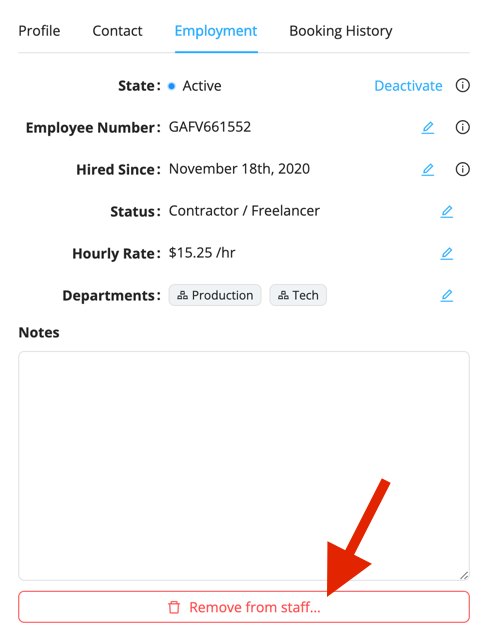
- Open the staff profile you wish to remove in the Staff section.
- Go to the Employment tab.
- Scroll all the way to the bottom and click Remove from staff.
Add removed staff back
If you removed staff by mistake, you can add them back:
- Go to the Staff section.
- Click Add.
- Enter their name and the same email address and / or mobile phone number that are associated with their existing Workstaff profile.
- Click Add 1 staff.
Workstaff will recognize the existing profile and restore its relationship with your organization.
At least one of the contact details you enter must exactly match the existing profile. Otherwise, Workstaff may create a new profile instead of restoring the removed one.