Clock In / Clock Out
Workstaff allows your employees to clock in and out of a shift through different options you can choose from. As an employer, this feature allows you to track your staff’s time in real time.
Clock in / Clock out options
You can customize your Time Tracking preferences in the settings.
Your staff will then be able to clock in and out of shifts from their mobile phones.
Once staff have clocked in and out, they are usually instructed to submit a timesheet that you can review and approve. When you use Via team leads only, team leads submit timesheets for their staff.
Workstaff does not automatically clock staff in or out, and there is no setting to choose an automatic clock in or clock out time.
If staff do not clock in during the clock-in window, which can last up to 2 hours after the shift starts, Workstaff treats them as late or unable to clock in. At that point, only Clock Out is available. Staff can clock out until the end of the day their shift ends. After that, they can still submit their time, but the submission will not include clock out data.
Downloading the QR code
If you have chosen the clock in/clock out via QR Code option, you can download the QR code to use to clock in and out of a specific event.
- Go to your project page
- Go to the Time Tracking tab Click on QR Code to download the QR code for this project in PDF format.
Live time tracking
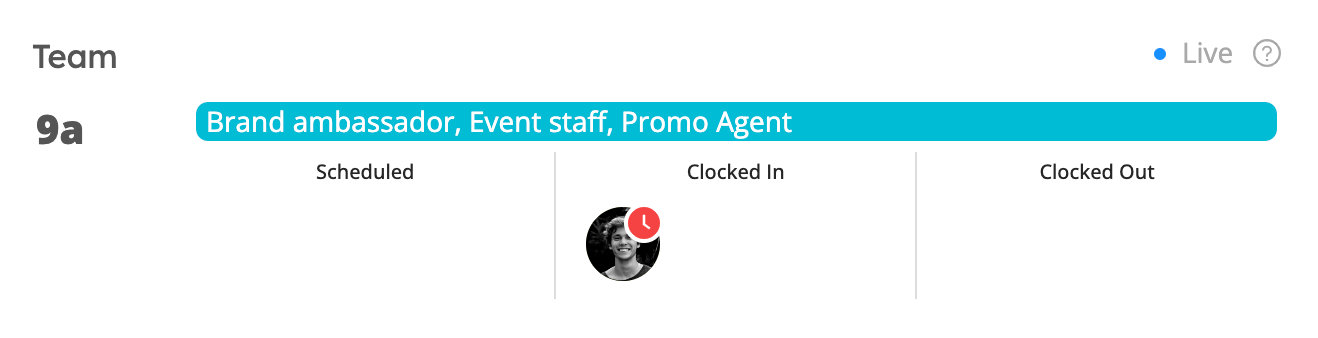
Keep track of your staff's time by going to the Today section in the main menu, and clicking on the event under the Dashboard. Staff presence will automatically update as staff clock in and out using the mobile app.
Learn More
Visit the Clock In and Out of Shifts page in our Help Center for workers to learn more and share this information with your staff.