Shift Tasks
Shift Tasks help you organize, track, and communicate what needs to be done before, during, or after a shift - making it easier to keep your team aligned and your operations running smoothly. Whether it’s preparing equipment, checking in at a location, or closing up after an event, Shift Tasks give you full visibility into what’s completed and what’s still in progress.
Creating Tasks
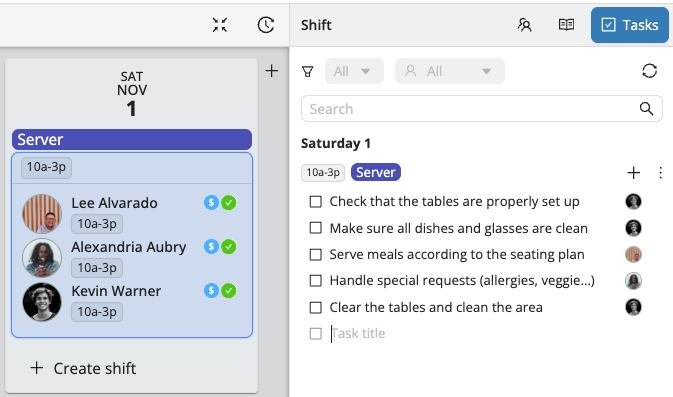
- Select the Shift where you’d like to add tasks.
- Go to the Tasks tab in the inspector on the right side of your screen.
- Click + to add a task.
- Enter a title and press Enter.
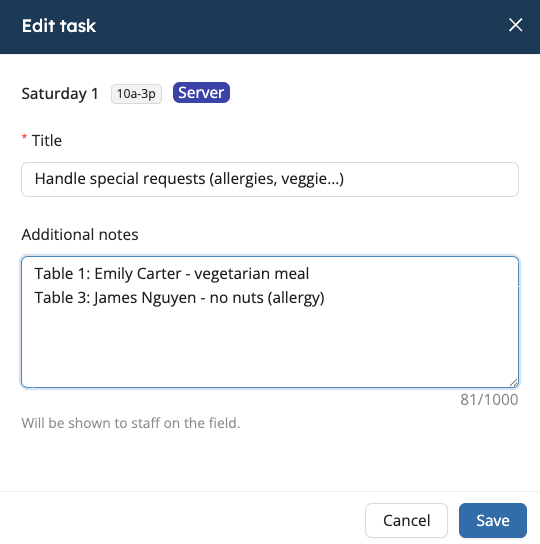
You can also add detailed instructions by clicking the sheet icon that appears on the right of when you hover over the task.
Saving Your Task List as a Template
To reuse your task list across shifts or projects, click the three dots in the top-right corner of your list and select Save as template.
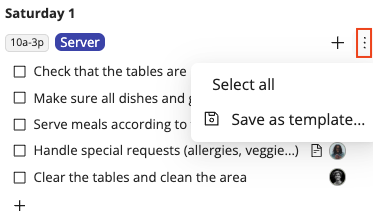
Then, to apply your newly created template to another shift, click the + at the top and select Add from template.
Assigning Tasks
To assign a task to a specific staff member, click the empty avatar on the right side of the task.
If a task is assigned 4 hours or less before the start of a shift, the staff member will receive a push notification.
They’ll find the task in their Workstaff app, under the shift details, and can mark it as completed directly once it’s done.
Team Lead Permissions
When a Team Lead is assigned to a shift, they have additional permissions to help manage tasks more efficiently:
- They can mark a task as completed, including on behalf of another staff member.
- They can assign or reassign a task to another team member.
- They receive a notification each time someone on their team completes a task.
- They can also remove the completed status from a task if needed.
These permissions allow the Team Lead to monitor progress in real time and ensure all tasks are completed as expected.