Editing Shifts and Bookings
On the project page, there are ways for you to easily edit multiple shifts or multiple bookings at once.
Selecting Multiple Shifts
Selecting several shifts allows you to assign staff to the selected shifts and to cancel them at once.
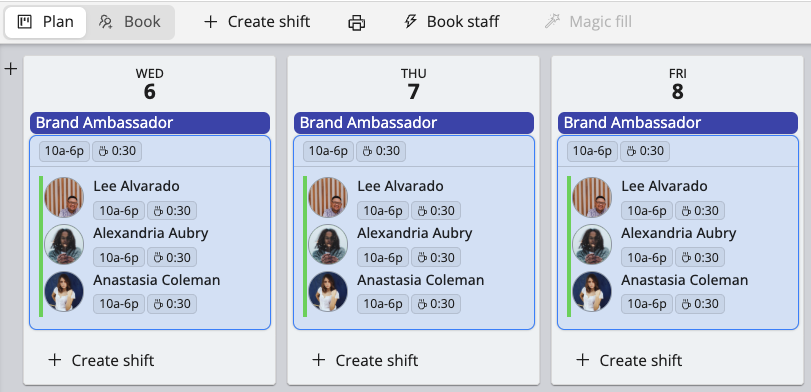
- To select all shifts on the project page, double click on one shift
- To select specific shifts on the project page, press Ctrl (Windows) or Command (macOS) and select the shifts you wish to edit as shown below
Selecting Multiple Bookings
Selecting multiple bookings allows you to cancel multiple bookings at once.
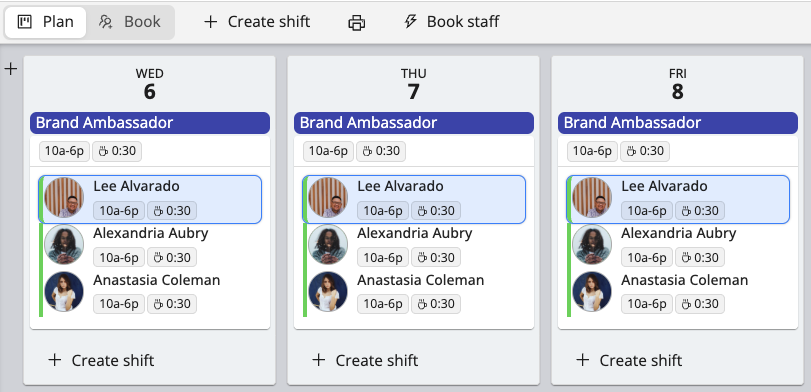
- To select all of one staff’s bookings in a project, double click on one of their bookings as shown below
- To select specific bookings, press Ctrl (Windows) or Command (macOS) and select the bookings you wish to edit
Using Drag and Drop in the Planner
You can drag and drop shifts, bookings, and candidates directly in the planner to make changes faster. Depending on what you drag and where you drop it, Workstaff can move or copy a shift, replace or swap a booking, or book a candidate on a shift.
While dragging, press Option (macOS) or Alt (Windows) to trigger the alternate drag action. For example, this can switch the result from move to copy, or from replace to swap.
Editing Shifts
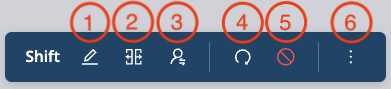
Workstaff allows you edit, repeat and delete your shifts, even after you have booked staff. Select the shift you wish to edit and follow the following instructions:
- Edit: Modify the label, the planned time and/or the number of staff needed for the shift.
- Split: Divide a shift to allocate the planned time among different positions for all bookings within this shift.
- Change Position: Change the position of a shift and of all the people booked on it.
- Repeat: Choose the date you wish to copy the shift on. Note that if you have already booked staff on that shift, they will be copied with the shift.
- Cancel: Click on Cancel to delete the selected shift.
- Send a broadcast or start a group chat with the staff booked on this shift.
Editing Bookings
Select the booking you wish to edit by clicking on the name of one of the people you have booked and follow the following instructions:
- Edit a Booking: Modify the schedule for this specific booking. Provide a detailed schedule for each staff.
- Swap Staff on a Booking: Click on the Swap button after selecting the booking, and select the person you wish to replace the booked staff member with.
- Split: Divide a booking to allocate the planned time among different positions for the selected worker.
- Change Position: Change the position of the selected worker.
- Confirm: Mark the booking as confirmed if you already know the staff member will be present, even if they haven’t confirmed it themselves.
- Cancel: Click on the Cancel button and the booking will be vacant and ready to be filled with another staff member.
- Issue a warning: Issue a warning to the selected staff member if needed. This can be used to document performance or behavioral concerns.
- Assign a Field Report: Assign a field report to the selected booking so the staff member can complete it after their shift.

Reverting the Last Changes
Workstaff offers you the flexibility to revert the last changes within your projects. This feature serves as a safety net, allowing you to backtrack and correct any modifications or mistakes.
- Revert Last Changes: This function enables you to retract the most recent action performed in your project. Whether it’s adding, deleting, or modifying shifts and bookings, it swiftly restores the project to its previous state. You can use it to backtrack through a series of actions, progressively reverting all changes made since the last saved version of the project.
- Discard All Draft Changes: This function allows you to discard all unsaved modifications and revert the project to its last saved state. If you've made multiple adjustments but wish to return to the original saved version without individually undoing each change, this feature efficiently clears all draft modifications, ensuring a clean slate for further editing or review.

Viewing the History of Actions
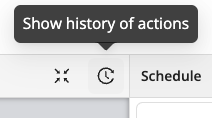
By clicking on Show History of Actions, you’ll see a detailed log of recent activity on the project, displayed in a table format.
The table includes:
- At: the date and time the action occurred
- User: who performed the action
- Action: a description of what was done (e.g. shift created, staff booked, booking canceled)
This view helps keep track of all key updates made to the project in a clear and transparent way.